

DCS World · In-cockpit overlay
Overlay Field Guide
The Overlay puts mission control in the cockpit. Task friendly AI, activate zones, call for troops and request a talkdown — without touching the F10 map or the chat bar. Built for VR, where neither of those is usable.
Server UG 2026.10.02-2155 Client UO 2026.10.01-0805 Toggle Ctrl+Shift+F9
Getting started
Install
- Download the overlay package from the downloads channel and unzip it anywhere.
- Run
install.bat. It finds your Saved Games folder, detects your DCS installs, backs up anything it replaces, and copies the two client files into place. - Restart DCS. Hooks are read at startup, so a running client will not pick up a new build.
Show and hide
The Overlay appears automatically when you enter a cockpit and hides when you leave it — on death, or back at the slot screen. Ctrl + Shift + F9 toggles it by hand at any time while flying.
The window is draggable and resizable, and it remembers position and size between sessions. Hiding minimizes it rather than destroying it, so it comes back exactly as you left it.
The Overlay checks that the mission it is talking to is the one you are actually flying, and stays hidden otherwise. You will not see it on other servers, and the hotkey will not force it open there.
Check your build first
Open About before anything else. It shows two versions: the server and your client. When something in this guide does not match what you see on screen, that panel is the first place to look — see §08.
The button bar
Six buttons across the top select the panel below. The active one lights green. About sits apart at the far right.
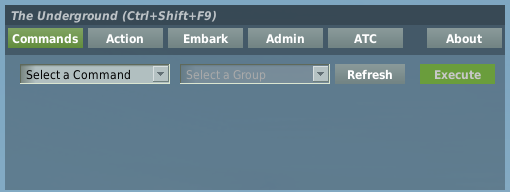
| Button | What it is for |
|---|---|
| Commands | Task a friendly AI group — move, attack, escort, mark, report. |
| Action | Activate and deactivate mission zones; request support; pull a zone sitrep. |
| Embark | Call for troops, and arm your helicopter to pick them up or drop them. |
| Admin | Mission-wide housekeeping. |
| ATC | Request a GCA talkdown to a field. |
| About | Server and client build versions. |
Commands
Every command follows the same shape: pick a command, pick a group, fill in whatever that command needs, then Execute. The group you pick is the one that carries out the order — and it answers you on the radio when it does.
Execute tells you when it is ready
The Execute button stays unavailable until the panel has everything required. Exactly three things can hold it back:
- No group selected — always required.
- No location, for the commands that need a point on the map.
- No convoy chosen, for
groundescort.
Everything else has a working default, so a command with a grayed-out Execute is missing one of those three — not a slider you forgot.
Where locations come from
The Location dropdown lists F10 map marks. Marks are shared, so you will see everyone's
— useful for rally points and for marking a downed crew. Your own unlabelled marks come
through as <your callsign> Mark 1, Mark 2 and so on. If you land
a helicopter, your parked position is offered as a location too.
Place a mark while the panel is open and it will not be there yet — tap Refresh to pull the current list.
The group list is filtered
Only groups that could plausibly carry out the selected command are shown. Choose
fireatpoint and you get artillery; choose bomb and you get aircraft.
Commands that anything can perform — move, pop,
beacon, farm, sitrep — show everything.
Two commands repurpose the list entirely: jtac lists your deployed JTAC teams,
and resupply lists sites that can actually be resupplied.
The filter errs toward showing you too much rather than too little. If a group's type cannot be determined it is listed anyway, on the grounds that a command you can issue is better than one mysteriously missing.
Move & position
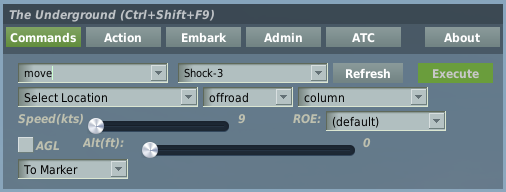
move
Relocate a group · any group
Sends the group somewhere. Ground units drive; aircraft fly there and hold overhead, so they stay on station and can be re-tasked rather than going home.
- Needs
- A location, or a bearing and range.
- Speed
- 1–400 kts, default 9. The low default suits ground convoys; raise it for aircraft.
- Alt
- 0–30,000 ft. 0 keeps current altitude. AGL reads the figure as height above ground instead of sea level.
- Terrain
- offroad or onroad.
- Formation
- 20 options, from column to arrowhead — see §09.
- ROE
- Rules of engagement to put in force with this order — see §09. A move never changes the ROE on its own, so this is how you set one while relocating. Leave it at (default) unless you mean it.
- MASH
- There is no MASH option here any more. To deliver a crew or a finished squad to the hospital, land at the MASH and disembark them — anyone put out within 300 ft of the tent walks in on their own.
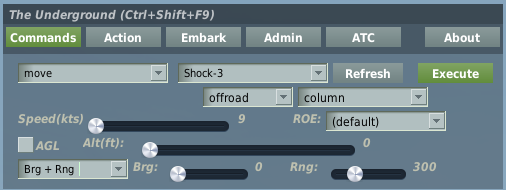
move Brg + Rng
Nudge a group without a map mark
Switch the mode dropdown and the Location list is replaced by two sliders. The group moves relative to its own current position — ideal for shifting infantry a hundred meters off a treeline when placing a mark would be slower than just saying "go north-east 300".
- Brg
- 0–360° true, in 5° steps.
- Rng
- 0–1,000 m, default 300.
- Note
- Speed, altitude, terrain and formation all still apply.
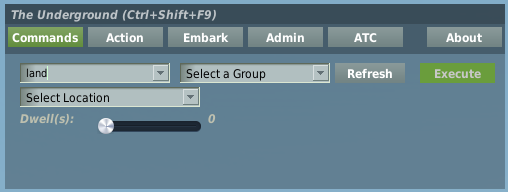
land
Put a helicopter on the ground · helicopters
Sets a helicopter down at a marked point.
- Needs
- A location.
- Dwell
- 0–600 s. 0 means stay put; anything else departs after that many seconds.
- Note
- Fixed-wing groups are listed but will decline.
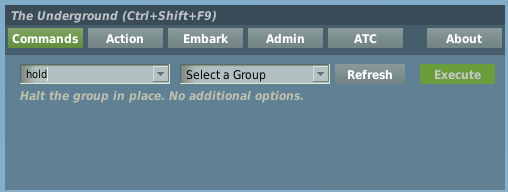
hold
Stop where you are · ground groups
Halts a ground group in place, cancelling whatever route it was following.
- Needs
- Nothing but the group.
Attack
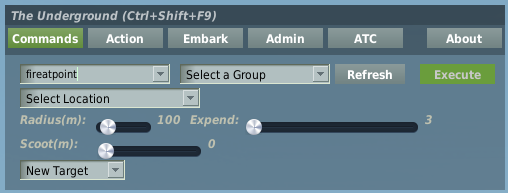
fireatpoint
Artillery fire mission · artillery
Puts rounds on a coordinate. Because it fires at a point rather than at something it can see, it needs no line of sight to the target — which is what makes it the workhorse artillery order.
- Needs
- A location.
- Radius
- 25–500 m, default 100. The size of the beaten zone.
- Expend
- 1–200 rounds, default 3.
- Scoot
- 0–1,000 m. Shoot-and-scoot: the battery displaces this far after firing. 0 stays put.
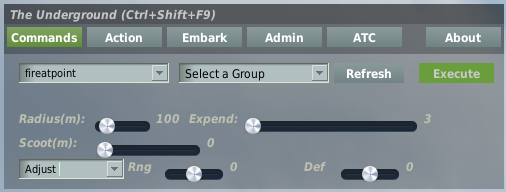
fireatpoint Adjust
Walk the rounds onto the target
Corrects the previous fire mission rather than starting a new one. Both sliders center on zero and read in meters along the gun–target line: right adds range, left drops it; right is right deflection, left is left.
- Needs
- Nothing — no mark. It builds on the last mission.
- Rng
- −1000 to +1000 m in 10 m steps. Right = add, left = drop.
- Def
- −500 to +500 m in 10 m steps. Right = right, left = left.
- Note
- Radius, expend and scoot still apply to the corrected mission.
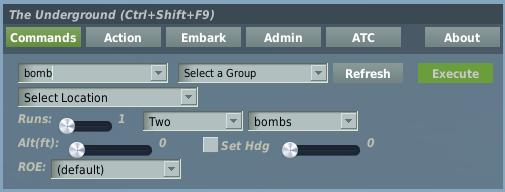
bomb
Air strike · aircraft
Runs a bombing attack on a marked point. Afterwards the aircraft holds overhead rather than flying home, so you can see the result and re-task it.
- Needs
- A location.
- Runs
- 1–10 passes.
- Expend
- Ordnance per run — see §09.
- Weapon
- Default bombs, which keeps the AI off its Mavericks. Also guns, rockets, missiles, any.
- Alt
- 0–25,000 ft MSL. 0 lets the AI choose.
- Set Hdg
- Tick to force a run-in heading; leave it clear and the AI picks its own attack axis.
- ROE
- Rules of engagement to put in force with this order — see §09. A strike raises Return Fire or Weapons Hold to Open Fire by itself. Leave it at (default) unless you mean it.
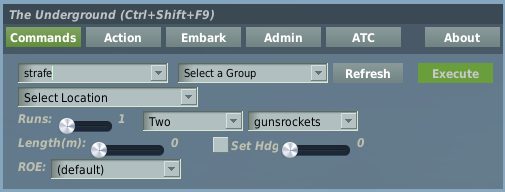
strafe
Gun and rocket run · aircraft
Attacks along a line rather than at a single aim point — suited to a column or a treeline.
- Needs
- A location.
- Runs
- 1–10 passes.
- Weapon
- Default gunsrockets, which keeps the AI off bombs.
- Length
- 0–3,000 m of target area. 0 lets the AI choose.
- Set Hdg
- Force the run-in axis — worth setting so the pass runs down a column rather than across it.
- ROE
- Rules of engagement to put in force with this order — see §09. A strike raises Return Fire or Weapons Hold to Open Fire by itself. Leave it at (default) unless you mean it.
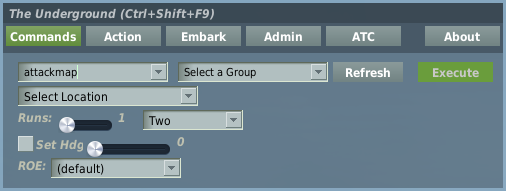
attackmap
Strike a map object · aircraft
Attacks buildings, bridges and scenery — the things that are part of the map rather than units on it, which the other attack commands cannot engage.
- Needs
- A location on the structure.
- Runs
- 1–10 passes.
- Expend
- Ordnance per run.
- Note
- No weapon selector — the AI arms itself for the target.
- ROE
- Rules of engagement to put in force with this order — see §09. A strike raises Return Fire or Weapons Hold to Open Fire by itself. Leave it at (default) unless you mean it.
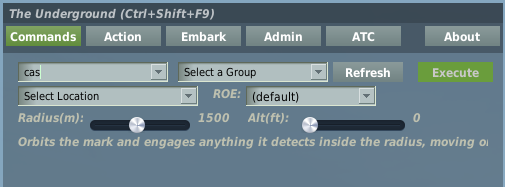
cas
Close air support on station · aircraft
The moving-target answer. bomb and strafe deliver on a
point and ignore an enemy who has walked off it. cas orbits the mark
and engages anything it detects inside the radius for as long as it stays on station
— moving, late-arriving, or dug in beside the mark. Order it again at a new mark to
move the station.
- Needs
- A location.
- Radius
- 200–3,000 m around the mark, default 1500.
- Alt
- 0–10,000 ft MSL for the orbit. 0 holds the current altitude. Never below the terrain at the mark plus a clearance, whatever you set.
- ROE
- Defaults to Open Fire, which is what lets it engage. See §09.
- Tip
- A gunship hunting infantry at low level will take fire. That is the job; expect losses.
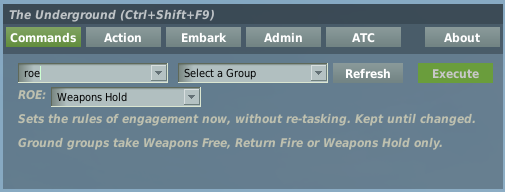
roe
Rules of engagement · any group
Sets the group's rules of engagement now, without re-tasking it, and keeps them in force through every later order until you change them again. Use it to put a group on Weapons Hold before it wanders into something, or to let it off the leash.
- Needs
- The group and a state. Execute stays unavailable until one is chosen.
- Ground groups
- Take Weapons Free, Return Fire or Weapons Hold only; the two designated states clamp to Weapons Free.
- Note
- A strike order (
bomb,strafe,attackmap,cas) raises Return Fire or Weapons Hold to Open Fire so the run can happen.escortdoes not: an escort on Weapons Hold just flies with you.
Escort
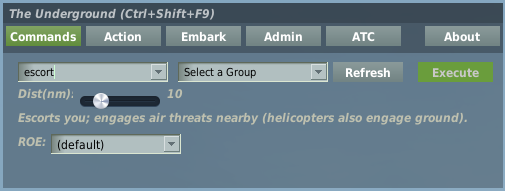
escort
Protect your aircraft · aircraft
The group forms up on you and engages threats inside its bubble. Fixed-wing escorts take air threats; helicopter escorts also engage ground targets, which is what you want when a gunship is covering a slick.
- Needs
- Nothing but the group — you are the escorted aircraft.
- Dist
- 1–40 nm engagement bubble, default 1.
- Tip
- Wind it down for gunships. A slow helicopter given 40 nm will wander a long way from you chasing something.
- ROE
- Rules of engagement to put in force with this order — see §09. Defaults to Open Fire when nothing is in force; an escort that cannot engage is only a follow. Leave it at (default) unless you mean it.
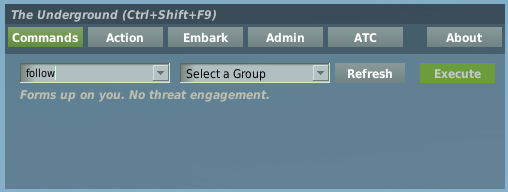
follow
Formation flying · aircraft
Identical to escort minus the engagement. They fly with you and will not peel off after threats — for moving a flight somewhere as a package, or for a photo pass.
- Needs
- Nothing but the group.
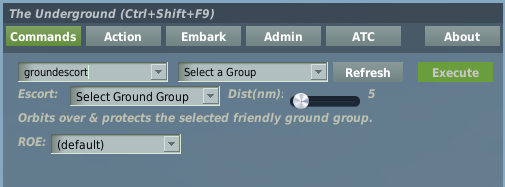
groundescort
Cover a convoy · aircraft escorting ground
Air cover for a friendly ground group. The aircraft orbits over the convoy and engages what threatens it. This is the one command with two group pickers: the main list chooses the aircraft, the panel's own dropdown chooses the convoy.
- Needs
- An aircraft and a ground group. Execute stays unavailable until both are set.
- Dist
- 1–40 nm, default 1 — the convoy is the thing being covered, so keep it close.
- ROE
- Rules of engagement to put in force with this order — see §09. Defaults to Open Fire when nothing is in force. Leave it at (default) unless you mean it.
Mark & support
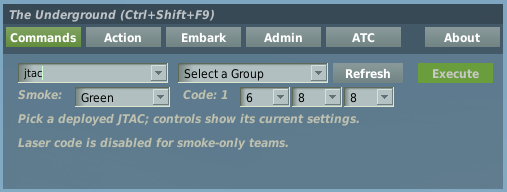
jtac
Configure a deployed JTAC · JTAC teams
A JTAC team you have inserted finds targets on its own, marks them with smoke, calls them on the radio and — on modern teams — lases them. This panel sets how it does that. Pick a team and the controls fill in with its current settings.
- Smoke
- Green, Red, White, Orange, Blue, or Cycle.
- Cycle
- Rotates color on each new target, so successive targets stay distinct while earlier smoke is still burning.
- Code
- Laser code, fixed 1 then three digits. Only valid digits are offered, so you cannot enter a code the aircraft would refuse.
- Note
- Code is disabled for smoke-only teams — earlier-era JTACs mark but do not lase.
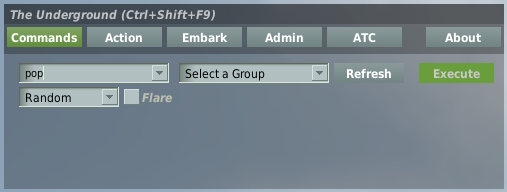
pop
Mark a position · any group
Has the group pop smoke or fire a flare on its own position — for marking an LZ, confirming who you are looking at, or signaling in poor light.
Leave the color on Random and the squad picks one and does not say which on the air — the enemy listens to the net, and a color named on the request is a color they can copy. The squad answers “smoke's out, confirm color”; you look, then report what you see with confirm. Sometimes an enemy unit nearby pops a different color to draw you in. Naming a color still works, and broadcasts it.
- Needs
- Nothing but the group.
- Color
- Random (default) or a named color. The list swaps when you tick Flare, because smoke and flares do not offer the same colors. Yellow is flare-only; orange and blue are smoke-only. Flares are always named and never need confirming.
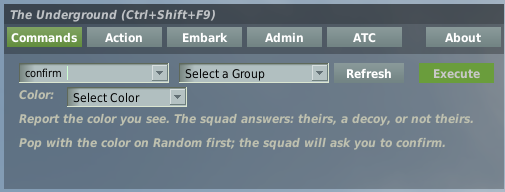
confirm
Mark a position · the group that popped
The second half of an unnamed pop. Pick the color you see on the ground and Execute. The squad tells you whether that is their smoke, the enemy's decoy, or nothing of theirs. The dropdown starts blank every time on purpose: look first, then report.
- Needs
- The group that popped, and a color picked. Execute stays gray until both.
- Answers
- That's us, come on in · Negative, that's not ours, the enemy is popping smoke · Negative, not our color · We haven't popped anything (nothing out, or the smoke has long burned off).
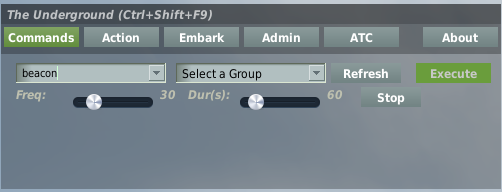
beacon
Homing beacon · any group
Sets the group transmitting a silent morse carrier you can home on with the FM radio's HOME function. Nothing is spoken and nothing appears on screen. The beacon runs for the duration you set and then stops on its own; Stop silences it early.
- Needs
- Nothing but the group.
- Freq
- Default 30, FM. The slider runs 1–127, but the radio does not: anything outside 30.00–75.95 is declined aloud.
- Dur(s)
- 15–300 seconds in steps of 15, default 60.
- Stop
- Stops the selected group's beacon now.
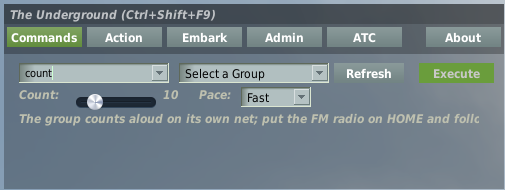
count
Slow count · any group
The group counts aloud on its own net — “Copy, starting count now. One, two, three… End of count.” — under one continuous carrier, so you can put the FM radio on HOME and follow the needle for the whole count. The way pilots did it: “give me a slow ten count.” The carrier starts a beat before the voice.
- Needs
- Nothing but the group.
- Count
- 5–30 in steps of 5, default 10.
- Pace
- Fast = 2 seconds between numbers (default), Slow = 5 seconds.
resupply
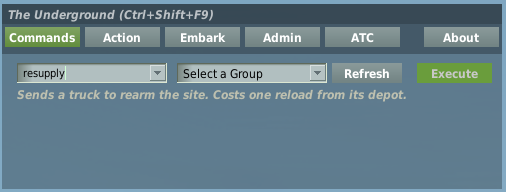
Rearm a fire base · supply-able sites
Sends a truck from the site's depot to rearm its guns. The truck drives in, works for a few minutes, and the site calls "rearmed and ready" when it is done.
- Needs
- Nothing but the site.
- Cost
- One reload from that depot's stock. A depot that is empty cannot supply.
- Note
- A site that is already full will decline — no stock is spent.
Reports
sitrep
Situation report · any group
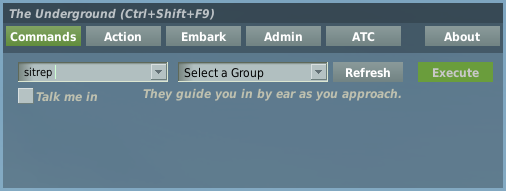
The group reports its strength, losses and damage in its own vocabulary — a squad reports men, a tank platoon reports tanks. If you are within earshot, it will mention hearing your rotors and give the direction.
- Needs
- Nothing but the group.
- Talk me in
- Keeps them talking you in by ear — see below.
sitrep Talk me in
They guide you in by ear
Tick the box and that group stays on the net, talking you in as you approach. They call the direction they hear you from, tell you when you are closing or drifting off, and say so when you are right on top of them.
It is a homing aid, not a status feed — useful when you are going in for a crew you cannot see, or into a treeline that all looks the same from the air.
- Range
- They pick you up at about 3 nm. Higher and faster, they hear you later.
- Bearing
- Given from their position — "we hear you to our south" means you are south of them.
- Ends
- Un-tick and Execute, or pick them up. It also stops on its own if you are shot down.
- Note
- Fly out of earshot and they say so; come back and they pick you up again without re-asking.
They will not give you a range, and the bearing is deliberately coarse. They are listening, not tracking you — judge the distance by whether they say you are getting closer.
farm
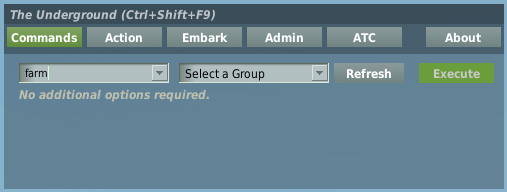
Ammo and fuel state · any group
Asks the group what it has left to fight with.
- Needs
- Nothing but the group.
Action — zones
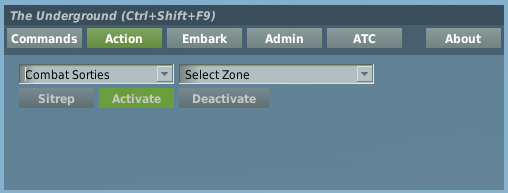
The Action panel starts and stops the mission's content. Choose a type, choose a zone, then use the buttons. Your selections stay put when you visit another panel and come back. Zones are listed alphabetically under the name the mission gives them, or the bare zone name when it gives none.
The buttons rename themselves
This is the part worth knowing: the three buttons change their labels with the type, because requesting support is not the same act as activating a battle.
| Type | What the zones are | Buttons |
|---|---|---|
| Combat Sorties | The mission's fights. Activating one spawns its forces. | Sitrep · Activate · Deactivate |
| Support Units | Assets you can call on — the ones that come to help. | Assets · Request · Cancel |
| Training Sorties | Practice areas and ranges. | Sitrep · Activate · Deactivate |
Sitrep on a combat zone reports what is still standing there. Worth pulling before you commit — and again afterwards, to see what you actually achieved.
Embark — troops
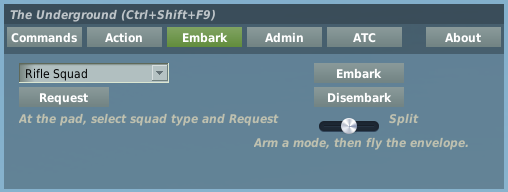
The panel does two unrelated things, which is why it is in two columns. Left calls troops into existence. Right controls your helicopter's cabin.
Left — call for a squad
Pick a squad type and press Request. They assemble at the nearest embarkation point and wait for you there. The dropdown comes up on Rifle Squad already, so the usual case is a single press.
You must be within roughly 500 m of an embarkation point to request. Ask from further out and the crew chief will tell you it cannot be done.
Right — pick them up and put them down
Embark and Disembark are arming toggles, not actions. Arm one, then fly the maneuver — the lift happens when the aircraft is in the right place. Press the lit button again to disarm. The crew chief talks you through it.
| You fly | Embark armed | Disembark armed |
|---|---|---|
| Landed, or a low slow skim | They run to you and climb aboard. | They jump out — fastest way to clear the cabin. |
| A steady hover, higher up | They come up the wire on the rig, a few at a time. | They rope down one at a time. |
Fly out of the envelope mid-lift and it pauses rather than failing — settle back down and it picks up where it left off. Drift in a hover and the crew chief will tell you to hold it steady.
Which side they exit
The slider sets which door the troops use: Port, Split (the default, evenly both sides) or Starboard. It is read at the moment of the drop, so you can flick it just before each one without re-arming — useful when one side of the aircraft is the side facing the treeline.
Troops weigh what troops weigh, and your aircraft will fly like it. A squad too large for the airframe is declined outright rather than half-loaded — take the smaller team, or bring a bigger helicopter.
ATC — GCA
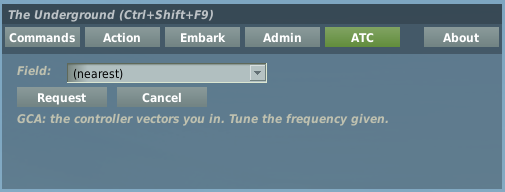
A ground controlled approach: a controller watches you on radar and talks you down with headings and altitudes until you have the field in sight. For weather, for night, or for a day when you would simply rather be talked in.
- Pick a field, or leave it on (nearest) and let the controller choose.
- Press Request. The nearest TOC acknowledges on its own frequency and hands you the GCA frequency.
- Tune the frequency you are given. Everything after the handoff comes over that radio.
- Fly the headings and altitudes you are given until you see the field.
Cancel terminates radar service. You do not have to — the controller releases you when you land.
Everything here arrives by real radio. If a radio is off or tuned elsewhere you will hear nothing, and the service will look broken when it is working perfectly. The field list only shows stations that are alive — a knocked-out GCA site cannot talk you down and will not be offered.
Admin
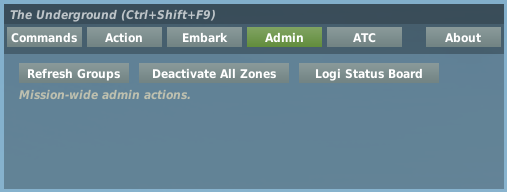
| Button | What it does |
|---|---|
| Refresh Groups | Rebuilds the mission's group list. Use it if something you know exists is not appearing. |
| Deactivate All Zones | Shuts down every active zone at once — combat, support and training alike. |
| Logi Status Board | Toggles the logistics board on the F10 map: depots, forward sites and how well stocked each one is. |
These are mission-wide. Deactivate All Zones in particular will end fights other people are flying. The status board is shared too — toggling it changes the F10 map for everyone.
About
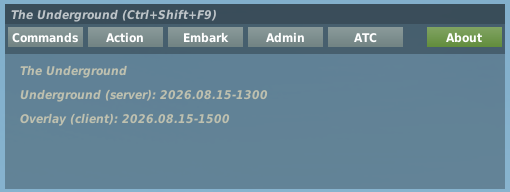
Underground (server) arrives over the network from whatever server you are on. Overlay (client) is the copy installed on your PC. Both are build timestamps, so the later one is the newer one.
This is the first thing to check when the Overlay does not behave as documented. A client
older than the announced build means you have not installed the latest package — download
it, run install.bat, restart DCS.
Value reference
Marking colors
Smoke and flares do not offer the same colors; the Pop panel swaps its list to match.
| Color | Smoke | Flare | JTAC marking |
|---|---|---|---|
| Green | yes | yes | yes |
| Red | yes | yes | yes |
| White | yes | yes | yes |
| Orange | yes | — | yes |
| Blue | yes | — | yes |
| Yellow | — | yes | — |
| Cycle | — | — | rotates per target |
Ordnance per run
Used by bomb, strafe and attackmap.
| Value | Meaning |
|---|---|
| One | A single weapon per pass. |
| Two | Two per pass. The default. |
| Four | Four per pass. |
| Quarter | A quarter of what is aboard. |
| Half | Half of what is aboard. |
| All | Everything. |
Weapon class
Narrows what the AI may reach for. The defaults exist because, left alone, aircraft pick the wrong thing — a bombing run flown with Mavericks, or a strafing pass flown with cluster bombs.
| Value | Available on | Notes |
|---|---|---|
| bombs | bomb | Default for bomb. |
| gunsrockets | strafe | Default for strafe. |
| guns | bomb, strafe | Cannon only. |
| rockets | bomb, strafe | Rockets only. |
| missiles | bomb | Guided air-to-ground. |
| any | bomb, strafe | AI's choice. |
Aircraft and loadout still have the last word — you cannot request a weapon that is not on the pylons.
Rules of engagement
Available on roe and, as a dropdown, on move, escort,
groundescort, bomb, strafe, attackmap and
cas. The labels are the Mission Editor's own. A state stays in force through every
later order until you change it.
| State | Meaning | Ground groups |
|---|---|---|
| Weapons Free | Engages anything it detects. Loose; it will hunt. | Yes |
| Priority Designated | Engages what its orders designate first, then anything else. | Clamps to Weapons Free |
| Open Fire | Engages only what its orders designate. The default for strikes, cas and escort. | Clamps to Weapons Free |
| Return Fire | Shoots back only. A strike ordered under it is raised to Open Fire; an escort is not. | Yes |
| Weapons Hold | Never fires. A strike ordered under it is raised to Open Fire; an escort is not. | Yes |
(default) on a command panel sends nothing: the command applies its own default only when no state is in force, and never undoes one you set.
Formations
Available on move.
| Group | Options |
|---|---|
| Columns | column · staggered-column · double-column · column-left · column-right · file |
| Lines | line-abreast · line-ahead · double-line · rank |
| Wedges | wedge · vee · arrowhead · triangle · cone · diamond |
| Echelons | echelon-left · echelon-right · trail · box |
If something looks wrong
| What you see | What it usually is |
|---|---|
| Execute is grayed out | No group, no location, or — on groundescort — no convoy chosen. Nothing else gates it. |
| The mark I just placed is not listed | The list was fetched before you placed it. Tap Refresh. |
| The group I want is not in the list | The list filters to groups that suit the command. Check you have the right command selected, then try Refresh Groups on the Admin panel. |
| The Overlay is empty | It is not reaching the server. The window still opens; the lists come up blank. |
| The Overlay never appears | Expected on any other server. On ours: confirm the files installed and that you restarted DCS after installing. |
| I hear nothing at all | Check your radios are on and tuned. Everything here arrives by real radio — a working system with a cold radio is silent. |
| It behaves unlike this guide | Compare About against the announced build. An old client is the usual answer. |
| Troops will not board | Check your doors are open, that you are in the envelope, and that the squad fits the airframe. The crew chief will say which it is. |
The Underground — Overlay Field Guide. Documents server build UG 2026.10.02-2155 and client build UO 2026.10.01-0805. Check the Overlay's About panel against these before assuming a difference is a bug.